Click  on the toolbar.
Note: The Vendors notebook contains a main (header) section and a binder section that contains a number of tabs. The tabs are used to view, enter and manage additional information pertaining to the record displayed in the header. The data entry instructions below pertain to the main (header) section of the Vendors notebook. For an explanation of the data entry requirements for the tabs, refer to Vendors Notebook Tabs Overview.
To create a new vendor record:
Click on the toolbar.
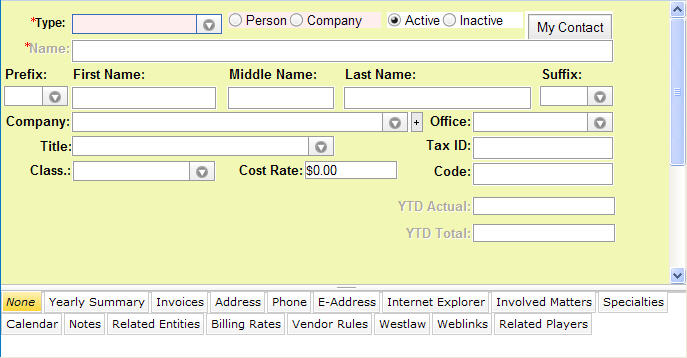
In the Type field, select a vendor type value from the dropdown list.
Click in the applicable Person/Company radio option. When you make this selection, LawManager will customize the input fields to accommodate your selection.
If the vendor is a company: In the Name field, enter the company name.
Note: This field is disabled if the vendor is a person.
If the vendor is a person: In the Prefix, First Name, Middle Name, Last Name,and Suffix fields, enter identifying information about the vendor. LawManager will auto-populate the Name field with an applicable company name for the vendor.
Note: In order to add a record, LawManager requires entry of the fields indicated above. All other fields are optional but, depending on the requirements of your organization, can be entered if the information is available. To add and save the record now, go to step 13. To add optional data, continue with step 6.
If the vendor is a person: In the Company field, enter the vendor's company name.
If the vendor is a person: In the Title field, enter the vendor's title.
In the Office field, select the vendor's location from the dropdown list.
In the Tax ID field, enter the vendor's tax ID number. If the vendor is a foreign company, enter the foreign ID number.
In the Class field, select the classification for the vendor from the drop-down list.
In the Cost Rate field, enter the vendor's hourly rate.
In the Code field, enter the applicable timekeeper's ID.
Click  or press Alt-S to save the record.